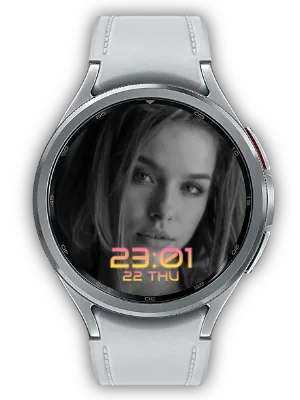
The greatest advantage of smartwatches over traditional watches is that you can change the watchface anytime. Most smartwatch users choose various watchfaces that match their personality. There are really many different watchfaces, but the best one is definitely a simple watchface filled with photos of loved ones. This watchface, which allows you to recall memories with loved ones every time you check the time in your busy daily life, is the best watchface. The setup is very simple, you can put in many photos, and you can change it to various styles. Try using it now!
Easily personalize your watchface
With the My Photo Watch Face app, you can easily set your favorite photos as watchface backgrounds. Compatible with Android Wear OS including Galaxy Watch, this app allows you to showcase your personal style and precious memories right on your wrist.

Set up a watchface decorated with your own photos in an intuitive and simple way.

Notice
Due to changes in Google's policy, some versions of Wear OS only support watchfaces in WFF (Watch Face Format) format. In such cases, My Photo Watch Face may not be installed on your watch. For more details, please refer to the following link. Update: Changes to Available Watch Faces
Key Features
Unlimited Photos
Don't worry about how many photos you can add! You can add as many photos as you want without restrictions. Fill it with photos containing memories with your loved ones. Easily add photos anytime, anywhere using image sharing or the add button.

Photo Display
You can display photos sequentially or mix them randomly for variety. You can easily change photos by touching the watchface. You can touch the left or right side of the watch to switch to the previous or next photo.
Enjoy various flexible display options that match your personal taste:
- AI-based face detection for smart automatic cropping of photos
- Choose from 5 beautiful and stylish fonts
- Apply stunning gradient colors for a modern, polished look
- Switch between 12-hour and 24-hour time formats
- Shuffle photo order to maintain a fresh and dynamic display
- Freely adjust time position - top, bottom, left, right, or center
- Adjust time size for optimal readability
- Optionally display date alongside time

Time Settings
Display time in 12-hour or 24-hour format. Show or hide date and day of the week as desired. Adjust the time display position - top, bottom, left, right, or center. Customizable with various fonts and beautiful gradient colors.

Always-on Display (AoD)
You can use your selected photos directly on the AoD screen. You can set different AoD screens through Eco, Normal, and Performance modes. The screen brightness is displayed differently in the AoD state of each setting.
D-day Feature (New in v3.0.0)
Never forget a special day again! Now you can display a D-day on your watchface. Set any date you want (e.g., anniversary, exam day, goal day, etc.) in the mobile app, and the watchface will automatically calculate and show how many days are left until or have passed since that day. Check your D-day at a glance, together with your photos!

Easy Setup
Set up your watchface in a few simple steps:
- Select Photos: Choose your favorite photos to add to the watchface.
- Customize Display: Adjust settings such as time format, date display, and time position.
- Enjoy Your Personalized Watch: Experience a dynamic and personalized watchface that changes with a touch.
My Photo Watch Face allows you to select and use countless photos as watchface backgrounds without restrictions. Selected photos are displayed sequentially or randomly, and touching the watchface changes to the next photo.
You can also customize the time display style according to your preferences. You can choose between 12-hour and 24-hour time formats. You also have the option to display or hide weather and day of the week. You can position the time display anywhere on the watchface: top, bottom, left, right, or center.
You can use your selected photos directly as the background for the Always-on Display (AoD) screen.
Why Choose My Photo Watch Face
- Enhanced Personalization: Create a watchface that reflects your unique style and memories.
- User-Friendly Interface: Intuitive and easy to use, ensuring a smooth setup process.
- Stay Connected: Follow us on social media for updates, tips, and community engagement.
Try My Photo Watch Face!
Experience the beauty and functionality of a personalized watchface. Download the app now and start customizing your Galaxy Watch.
Updates
- Complication Interval Settings: You can now set the photo change interval for complications.
- Tile Support: Supports watch tile feature for quick photo viewing.
- Photo Complication Support: Supports displaying photos as complications on other watch faces.
- D-Day Setting Feature: Added the ability to set and display D-Day countdown on the watch face.
- Ad Removal Feature: Added the option to remove ads through in-app purchase.
- Portrait Mode Lock: Locked screen orientation to portrait for better usability.
- Removed Unnecessary Connection Notices: Removed unnecessary connection-related notification messages.
- Updated Guide Messages: Updated in-app guide messages for better clarity.
- Browser Error Fix: Fixed errors occurring in the built-in browser.
- Icon Animation: Added animation effects to icons for visual enhancement.
- Back Key Background Navigation: Changed back key behavior to move the app to background instead of closing.
- Info Screen Update: Updated the information screen with the latest content.
- Watch App Install Button: Added a button to install the watch app directly from the mobile app.
- Battery Info Display: Supports displaying battery level information on the watch face.
- watch-go.com Info Update: Updated watch-go.com related information.
- Time Text Margin Adjustment: Adjusted time display text margins for better readability.
- Connection Message Fix: Fixed incorrect connection guide messages.
- Removed Unnecessary Connection Toasts: Removed unnecessary connection notification toasts.
- Privacy Settings: Added privacy protection settings option.
- Watch Face Format Guide: Added information about Watch Face Format.
- Mobile Connection Improvement: Improved connection stability with mobile devices.
- AI Face Recognition: Supports AI-based face recognition to automatically detect faces in photos.
- Feature Suggestion Messages: Added suggestion messages to guide users about useful features.
Frequently Asked Questions
How do I add photos to the watchface?
To add photos to the watchface, open the mobile app and select the photos you want to use. You can add multiple photos without restrictions.
How to connect watch and mobile
To connect your watch to your mobile device, follow the instructions provided by the manufacturer. Make sure you have installed the necessary apps and activated the required permissions.
To connect My Photo Watch Face, set up the watchface on your watch and open the app on your mobile device. The app will automatically connect to your watch.
What should I do if the connection doesn't work?
If your mobile app doesn't connect to your watch, check the following:
- Make sure your mobile device and watch are connected.
- Make sure both the mobile app and watchface app are installed.
- Confirm that the watchface app is set as the current active watchface.
- Check the connection status icon in the upper right corner of the mobile app.
- If the icon shows as disconnected, check the watch connection. - Try adjusting settings in the app and check if they are applied to the watchface.
If the problem persists, try the following steps:
- Switch to another watchface and then set up My Photo Watch Face again.
- Uninstall and reinstall the app.
If the problem continues, please provide the following information by email:
- Your mobile device and watch model.
- The status of the icon in the upper right corner and any messages that appear when tapped.
- Any error messages that appear during connection failures.
We value your feedback!
Share your thoughts and suggestions to help us provide the best user experience.


