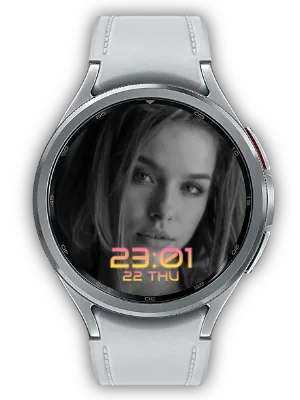
A photo watch face should make every glance feel warm and personal. My Photo Watch Face: Cute keeps the essential experience of My Photo Watch Face - Basic, then changes the mood with cute, rounded typography that stays out of the way of your favorite image.
Before You Start
To use the photo complication feature, install My Photo Watch Frame on both your phone and watch first. This companion app lets you add, manage, and sync the photos shown on this watch face.
Cute, Soft, and Photo-First
Like My Photo Watch Face - Basic, Cute uses your selected photo as the center of the watch face. The difference is the feeling: a softer, more playful clock style, subtle gradients, and a more cheerful look that works beautifully with landscapes, portraits, fashion shots, pets, and art.

Set your photo through an intuitive phone app, then frame it with a clean WFF watch face that feels friendly every time you glance down.

Key Features
- Set your photo as the background via Photo Complication
- Cute rounded typography that keeps the photo friendly and readable
- Soft gradient color support
- Adjustable time size
- Flexible time position: top, bottom, or center
- Battery-friendly Watch Face Format (WFF)

Photo Display Settings
Background photos are delivered to the watch face through complications. Please install My Photo Watch Frame, which supports photo complication functionality. You can add your favorite photos from the phone, sync them to the watch, and change the photo on the watch face with a touch.
Cute is designed for family, pet, travel, and everyday photos:
- AI-based face detection for smart automatic cropping of photos
- Cute clock styling that makes personal photos feel warmer
- Gradient overlays that keep time readable without overpowering the photo
- Time position controls for better framing
- Date display for everyday practicality

Easy Photo Addition
Use the My Photo Watch Frame mobile app to add photos easily. Multiple photos can be selected at once and synchronized automatically. My Photo Watch Frame also provides Tile functionality, so your photo collection remains useful even when you use another watch face.

Style Customization
Cute is about softness. Adjust the time size, move the time to the top, bottom, or center, and choose gradients that match the mood of your image. The cute typography gives personal photos a softer mood, turning the watch into a small, lovable photo frame.

Easy Setup
- Select Photos: Choose photos that deserve a clean, warm, cute frame.
- Customize Display: Adjust date display, gradient color, time size, and position.
- Enjoy Your Personalized Watch: See your photo with a cute, lovable watch face style.
You can also use your selected photos directly as the background for the Always-on Display (AoD) screen.
Why Choose Cute
- Warm Photo Design: Cute typography adds a friendly mood while keeping your photo easy to enjoy.
- Cute Aesthetic: Perfect for users who prefer soft, lovable watch faces.
- Familiar Flow: Built from the same core idea as My Photo Watch Face - Basic.
- WFF Efficiency: Lightweight Watch Face Format design for Wear OS.
Download My Photo Watch Face: Cute and turn your favorite photo into a cute, lovable watch face.
Updates
- Current Build: My Photo Watch Face: Cute is available with cute rounded typography, photo complication support, gradients, adjustable time size, and flexible time position.
- Initial Release: Initial release of the cute photo watch face style for Wear OS.
Frequently Asked Questions
How do I add photos to the watch face?
Install My Photo Watch Frame on your phone and watch, then open the mobile app and select the photos you want to use. You can sync them to the watch face through the photo complication.
How do I connect the watch and phone?
Make sure your phone and watch are paired, then set My Photo Watch Face: Cute as the active watch face and open My Photo Watch Frame on your phone.
What should I do if the connection does not work?
- Make sure your phone and watch are connected.
- Make sure both My Photo Watch Frame and My Photo Watch Face: Cute are installed.
- Confirm that Cute is set as the current active watch face.
- Check the connection status icon in the mobile app.
- Change a photo or setting in the app and confirm whether it appears on the watch face.
If the problem continues, switch to another watch face and then set Cute again, or reinstall the related apps.


