Wear OS Tiles: Get Information at a Swipe

Swipe Once. Know Everything.
Have you ever unlocked your phone just to check a price, glance at a quote, or log a quick count? Your smartwatch is supposed to make that faster — not slower.
A smartwatch should give you information the moment you need it. If it takes three taps to see today's Bitcoin price, something is wrong. Watch-Go fully supports Wear OS Tiles to put your most-needed information one swipe away.
Now check live prices, your daily quote, or your counter with just one swipe from your watch face.
What is a Wear OS Tile?
Never heard of Tiles? Think of them like widgets on your smartphone's home screen — always visible, always current, no app launch needed.
Swipe left from your watch face and a row of Tiles appears. Each Tile shows live information from an app you've chosen: a price, a quote, a counter. Tap the Tile to jump straight into the full app.

Image: Android Developers
What Android says about Tiles
"Tiles provide easy access to the information and actions users need to get things done." — Android Developers
Three things make Tiles uniquely powerful on a smartwatch:
- No app launch required — data is right there, already loaded
- Battery efficient — Tiles are optimized for Wear OS power management
- One tap to go deeper — tap the Tile to open the full app instantly
Tile Apps by Watch-Go
Watch-Go apps are built with Tiles as a first-class feature. Here are the apps that bring the most useful information to your Tile carousel.
Real-Time Data Tiles
Numbers that change by the second belong on a Tile, not buried in an app drawer.


Inspiration & Memories Tiles
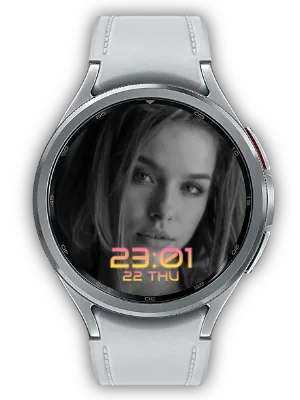
Start every glance at your wrist with something meaningful — a word that motivates, or a face that makes you smile.


How To: Add a Tile to Your Watch
Adding a Tile takes under a minute. Here's how.
Step 1: Open Tile Editing Mode
- From your watch face, swipe right past all existing Tiles until you reach the end
- Tap the "Add" button or the "+" icon to manage your Tiles
Step 2: Find a Watch-Go App Tile
- Scroll through the list of available Tiles
- Look for Crypto Watch, Quote Moment, Multi Counter, or My Photo Watch Frame
- Tap the Tile to preview it before adding
Step 3: Add and Arrange
- Tap "Add" to place the Tile in your carousel
- Drag to reorder Tiles so your most-used ones appear first
- Swipe left from your watch face anytime to access it instantly
Tip: Some Tiles require the companion mobile app to be set up first. For example, Crypto Watch needs you to select your exchange and trading pairs in the phone app before live prices appear on the Tile.
Why Tiles Make Your Smartwatch Smarter
A smartwatch isn't just a device for receiving notifications. With Tiles, it becomes a live dashboard on your wrist.
Using Wear OS Tiles offers these benefits:
- Instant Access — No app drawer, no waiting. Swipe and the information is there.
- Battery Efficient — Tiles are optimized for Wear OS power management, so you see more with less drain.
- Always Relevant — Real-time data refreshes automatically, so the Tile is never stale.
- One Tap to Act — Need more detail? Tap the Tile to jump straight into the full app.
All Watch-Go Tile apps are designed to feel native on your wrist — fast, focused, and always ready. Whether you're tracking prices, staying motivated, counting reps, or keeping memories close, your Tile carousel is the fastest path there.
Swipe right on your watch right now — and see what your wrist can really do.
For more technical information, visit the Android Developer documentation