

What It Does
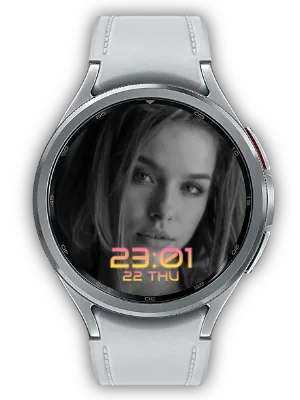
Pair a circular photo with a small analog clock and two side information complications.
This Watch Face Format (WFF) watch face supports Always-on Display (AOD).
Customize Your View
Swap the photo and clock between top and bottom. Choose Normal or Large clock size and Classic White, Gold, Sky or Coral hands. Large emphasizes the clock and reduces the photo area. The clock has hour and minute hands, without a second hand.
Select a Photo provider in the image slot to choose a single photo. Available providers depend on your watch and installed apps.

A Style for Your Everyday Glances
Dial pairs a round photo with a small analog clock, hour and minute hands and twelve indexes. Choose Normal to give the photo more space, or Large to emphasize the clock. Swap the top and bottom layout and choose Classic White, Gold, Sky or Coral hands to suit the image.
One Favorite Photo or a Rotating Album
In Customize, select the photo slot and choose a compatible Photo provider to display one image. The available providers and photo-picker flow depend on your watch and installed apps. Choose a picture whose main subject remains visible within the face’s photo area.
For a rotating album, install My Photo Watch Face: Album on both the phone and watch, sync your photos and choose My Photo in this face’s compatible photo slot. Edit photos and set the rotation interval in Album; customize the clock design in this watch face.
Two Side Slots for Useful Information
Choose a provider separately for the left and right information slots. Steps, date or battery information can sit beside the photo, so the face combines a personal image with details you often check.
Available choices depend on the watch and installed providers. Select compatible options in Customize and allow any permissions requested by the app supplying the information.
Make the Time Easy to Read
Open Customize by long-pressing the watch face and adjust the available size, position and color settings. Keep the clock away from a portrait’s face or the most detailed part of a picture, and choose a color with enough contrast.
Check the result with the actual background you plan to use. A simpler image or a different supported layout can give the clock and information more room without changing the image provider.
Always-on Display and Setup Tips
The face uses Watch Face Format and supports Always-on Display (AOD). With AOD enabled on the watch, the system switches to the ambient presentation; its appearance can be simpler or dimmer than the active screen.
If the face is missing from the selection list, confirm that it is installed on the watch and that the watch supports WFF. If photos or text are missing, reopen Customize and select the correct compatible provider. Companion settings supply content; this face’s settings determine its presentation.
How to Get Started
- Install the watch face on a compatible Wear OS watch and select it in the watch face list.
- Long-press the watch face and open Customize.
- Select the relevant complication slot and choose a compatible provider.
- Adjust the clock style and confirm your changes.
Related Apps
For a rotating album, install My Photo Watch Face: Album on your phone and watch, sync photos and select My Photo in this face’s compatible photo slot. Album supplies the photos; this watch face controls the clock and AOD.
Updates
- Compatibility update: Updated to meet Android 15 (API 35) target requirements.
- Initial Release: First release of the round photo watch face with a small analog clock. Frame any gallery photo in a clean circle, place a small analog clock (hour and minute hands with 12 indices) on the opposite side, swap photo and clock between top and bottom, choose from 4 hand colors, add two side info complications, and enjoy Always-on Display support.
We welcome your feedback and suggestions.


