
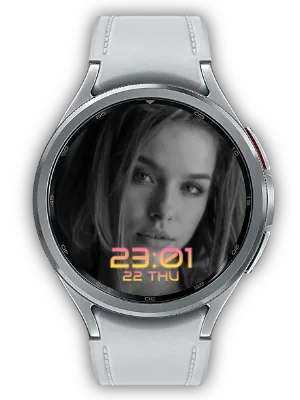

Frame your shot on your wrist and capture it when you are ready. Remote Camera Watch turns your Wear OS watch into a remote for your Android phone camera. From full-length travel portraits and group photos to rear-camera vlogs, keep your phone on its mount while you prepare, shoot, and check the result from your watch.
Key Benefits
- Live preview or controls-only watch mode
- Remote shutter, video, timer, zoom, and front/rear camera switching
- Level guide, 1/3/5-photo sequences, and optional smile shutter
- Recent-shot gallery on the watch with originals saved on the phone
Low-latency live preview on your wrist
See what the phone camera sees, even when its screen faces away from you. Adjust your position and pose using the watch preview, then trigger the shutter from your wrist. Vibration confirms the capture.
Once your framing is set, turn off Watch Preview to use just the shutter and controls. Stopping preview transmission reduces battery use and streaming overhead.

Timer sounds, vibration, and photo sequences
Capture instantly or choose a 3-, 5-, or 10-second timer to settle into your pose. The watch vibrates with the countdown; optional sounds on the phone help everyone get ready for a group photo.
Choose None (default) or Sounds 1–3 at the phone’s media volume. The first photo is taken after the final sound ends. Select 1, 3, or 5 photos per shutter press to capture several expressions. Sequence sounds play only before the first photo and do not apply to instant shots, smile shutter, or video.

Capture a smile automatically
Enable smile shutter in settings to take a photo when a smile is detected consistently. It is useful for relaxed tripod portraits without reaching for the shutter button.
Smile shutter is optional. Use the watch shutter whenever you prefer to choose the exact moment yourself.
Crown and bezel zoom without covering the preview
On supported watches, turn the crown, rotary button, or physical or touch bezel to adjust framing quickly. Turn counterclockwise to zoom in and clockwise to zoom out, keeping the small preview clear of your fingers.
Rotary zoom works in live preview, controls-only mode, the control panel, and during video recording. Use the +/− buttons on watches without supported rotary input.
Remote settings for a balanced composition
Use the watch panel to switch front and rear cameras, set flash to on, off, or auto, choose 4:3, 16:9, or 1:1, and adjust mirror preview. Change framing and camera options without returning to the phone.
Enable the level guide to check the phone’s tilt in both previews. It appears near horizontal or vertical alignment, and the roll line changes color when level. This helps align landscapes and tripod shots. Available controls depend on the camera capabilities of your device.

Rear-camera video from in front of the lens
Switch between photo and video and start or stop recording from your watch. Live preview helps you stay in frame when the phone screen is facing away during a vlog or demonstration.
During recording, zoom stays available while camera, mode, and timer controls are hidden to reduce accidental interruptions. Microphone permission is requested separately only when starting video with audio.

Review up to five recent photos on the watch
With review enabled, the recent-shot gallery opens after a photo with the newest preview selected. Tap either side of the photo or swipe to compare up to five previews and check expressions and framing before another shot.
Close with the bottom button or the watch’s cancel key to return to live preview. Review Off prevents automatic opening. The watch holds only temporary low-resolution previews; original photos are saved on your phone.
Choose your phone preview size
Set the phone preview to Large 100%, Medium 75%, or Small 50%. It stays at the top of the screen with its aspect ratio preserved, while shutter and camera-switch buttons retain their size and position relative to the preview.
Your choice persists when you reopen the app. This changes only the phone’s display size, with no effect on photo or video quality or watch preview transmission quality.
Cover, AoD, and Black screen modes
Cover places a chosen image over the phone screen, AoD shows a clock on a dark screen, and Black covers it with a low-brightness black display. Choose a mode when you want less screen exposure or brightness during a shoot.
The camera remains active underneath the cover, and watch preview can still show your framing. Select the display mode that suits your setup.

Open from a Tile and follow connection guidance
Install and open the apps separately on your paired Android phone and Wear OS watch. Add the Remote Cam Watch Tile to open both the watch app and the phone’s camera control screen with its large round camera button. A locked phone may need unlocking.
The connection dialog distinguishes a missing watch, an unavailable watch app, connection failures, camera permissions, and camera readiness. Depending on the state, open or install the watch app, check again, reconnect, allow permission, or retry the camera. Allow camera and the required Bluetooth permissions on Android 12 and later.

Best For
- Tripod portraits — check your pose and framing, then use the timer or smile shutter for travel photos.
- Group photos — get everyone into position before triggering capture and follow the countdown sounds and vibration.
- Vlogs and workout videos — check the rear-camera framing and control recording and zoom from in front of the lens.
- Expression shots — capture 3 or 5 photos and compare recent previews on your wrist.
How to Get Started
- Install the phone app and install the watch app separately on your paired Wear OS device
- Allow camera and required Bluetooth permissions, open both apps, and follow connection guidance
- Position the phone, choose photo or video and timer options, then trigger capture from your watch
Updates
- What’s new: Choose None or Sounds 1–3 for the timer. Countdown sounds play on the phone, and capture starts after the final sound finishes.
- What’s new: Browse up to five recent photo previews on the watch by tapping or swiping and close the gallery to return to live preview. Fixed a crash while checking reduced-motion settings on some Wear OS devices. Connection diagnostics distinguish watch, camera, and permission failures and offer direct recovery actions. Choose Large 100%, Medium 75%, or Small 50% phone preview size while keeping controls positioned relative to the preview. Supported rotary controls zoom in counterclockwise and out clockwise, alongside the existing +/− buttons.
- What’s new: Fixed watch preview orientation in mirror mode. The waiting screen can open the phone app to retry connection. The watch camera Tile now has a large image-based circular button that opens both the watch app and the paired phone’s camera-control screen.
- What’s new: The final onboarding screen opens detailed website guidance. Added optional smile shutter, which takes a photo when a smile is detected consistently.
- What’s new: Connection status offers watch-app open or install actions and clearer channel setup progress. Turning off Watch Preview stops streaming and shows controls only. During video recording, camera, mode, and timer buttons are hidden while zoom remains. Fixed flickering status when the watch is connected but its app is not running.
- Smoother Watch Live Preview: Fixed frame stutter so motion in the watch live preview appears much smoother.
- Preview Stability: Improved watch live preview connection reliability and reduced accumulated delay.
- Cover Screen Polish: Photo capture notifications no longer appear while the cover screen is on, and Black and AoD mode buttons are easier to tell apart.
- Video Mode Stability Fix: Fixed an issue that could close the app on some devices when returning after video mode.
- Level Meter: Added roll and pitch level guidance in mobile and watch previews, shown briefly near the reference angle.
- Interval Shooting: Added 1, 3, and 5 shot interval options from a single shutter action.
- Black Screen Mode: Added a low-brightness black screen mode for the phone while keeping the watch preview active.
- Control Panel: Added a control panel to control the camera from the watch.
- Rotation Info: Photos are saved in the correct orientation by reflecting device rotation information during capture.
- Cover Screen: Added Cover Screen feature to display to the photo subject.
- Initial Release: First version of the app has been released.
We welcome any comments or suggestions for improvement.


