
Give focused work and regular breaks a place in your day. Pomodoro Watch runs work, short-break, and long-break timers on an Android phone or independently on a Wear OS watch, with a routine you can adjust to the task.
Start from the main screen, a phone widget, or the watch Tile, then review your focus history on your phone. Session labels add context to records, while the statistics dashboard helps you see when and how consistently you make time to focus.
Build a routine that fits
- Customize work, short breaks, long breaks, and the number of sessions per cycle.
- Run phone and watch timers independently; share completed records between paired devices.
- Control the phone timer from home-screen widgets and the watch timer from a Wear OS Tile.
- Create work labels on your phone and select a label separately on each device.
- Review daily focus, weekly comparisons, streaks, time-of-day patterns, and a monthly heatmap.
- Choose sound, vibration, automatic restart, optional quotes, and work-only Do Not Disturb.
A focus cycle you can customize
Begin with the familiar 25-minute work session, 5-minute break, and a longer break after four sessions, or change the cycle to suit your day. Work can last 1–60 minutes, short breaks 1–30 minutes, long breaks 5–60 minutes, with 1–8 work sessions per cycle.
Leave automatic restart off to decide when to begin the next stage, or turn it on to continue through the routine automatically. Optional quotes appear when you start a timer, adding a short prompt before returning to your task.


A phone timer ready on the main screen
Use Pomodoro Watch on your Android phone even without a watch. The main screen keeps a circular timer in the center, so you can start a work session directly and see its stage and progress when you return.
The interface follows your system’s light or dark theme. Navigation also adapts to tablets, foldables, rotation, and split-screen use, making it practical to keep a timer alongside study materials or another work app.

An independent timer on your wrist
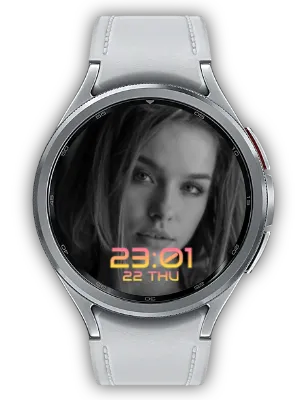
The Wear OS app runs its own timer without needing the phone to operate it. Add the Tile to view the current timer type and session, then start, pause, stop, or move to the next timer using its controls.
Tap outside the Tile buttons to open the watch app for a closer look. A compatible watch face complication shows today’s completed work-session count and opens the app when tapped, giving you a quick reminder of your progress.

Phone controls on your home screen
Add a Pomodoro Watch home-screen widget to see the phone timer’s stage and remaining time without returning to the full app. The compact widget offers start and pause controls, and larger layouts provide more space for the timer.
Use the widget to begin a work block between other phone tasks or pause when your plans change. Starting the next session from the widget also clears the previous completion alert and its repeating sound or vibration.

Give each work session a label
Create up to 20 labels in mobile settings, each 1–30 characters long, for subjects, clients, projects, or daily tasks. Select one label, or no label, before starting work; that choice stays attached to the session and appears on its record card.
A running or paused work session keeps its original label. During a break, you can choose the label for your next work session. The label list is sent to the watch, where tapping the label cycles through choices; phone and watch can keep different selections.
Quieter work, with breaks kept separate
Enable optional Do Not Disturb for work timers to reduce interruptions during a focus block. Android must grant notification-policy access before the app can apply this setting; the app’s settings guide you to that system permission.
The option applies during work and releases Do Not Disturb for breaks. Choose the app’s sound and vibration settings separately for completion alerts, remembering that system silent modes and notification settings can affect how an alert reaches you.
See your focus patterns over time
The statistics dashboard brings together today’s focus time and completed Pomodoros, your best day, and a comparison of this week with last week. Current and longest streaks show how regularly you return to the routine.
Time-of-day patterns help you review when you tend to focus, and the monthly heatmap shows focus time across individual dates. Record cards retain session labels for context; you can remove a date’s records or clear the history when needed.

Shared records, independent timers
Completed timer records from the paired phone and watch are brought together for review. Use the watch for a block away from your desk and the phone for another task, then open the phone app with the devices connected to receive the latest history.
This record sharing does not mirror a running timer between devices: each device starts and controls its own session. If both devices have records of the same timer type within five minutes, merging gives the phone record priority to reduce duplicates.
Completion alerts and a clear next step
Choose sound, vibration, or both when a timer ends. Phone completion alerts can repeat sound and vibration for up to 30 seconds; stopping the alert or beginning the next session clears them. Work, break, and long-break completion screens use distinct colors.
On Android 14 and later, full-screen notification access allows a completion screen on the locked phone. Without that access, a heads-up notification provides the next-step controls. Keep notification and exact-alarm permissions available for the alerts you want.

Keep your timer running beyond the app screen
Timers use actual elapsed time so changing the phone clock or time zone does not change the duration of your work block. Released recovery improvements help restore running timers after app restarts or reboots, including when the watch screen is off or the app is in the background.
A future timer can be restored after reboot; one that already elapsed while the phone was off is cleared instead of sounding a delayed alarm. Force-stopping an app, powering off a device, or restricting notifications and alarms can still prevent delivery, so review those settings if an alert is missing.
Make room for focus in your day
- Study several subjects in separate labelled work blocks and review the day’s records afterward.
- Use a longer work period for writing or coding, with short breaks and a planned long break after a cycle.
- Start a watch-only timer while your phone is away, then bring completed records into your phone history.
- Place a widget on your home screen to begin and pause work without navigating through the app.
- Review weekly comparisons and the monthly heatmap to understand the consistency of your routine.
- Choose work-only Do Not Disturb for a quieter work block and let the app release it for breaks.
Start your first focus block
- Install the Android app; install the Wear OS app separately on your paired watch if you want wrist timers.
- Set work and break lengths, sessions per cycle, and whether the next stage should start automatically.
- Choose completion sound and vibration, and review notification, exact-alarm, and optional full-screen access.
- Create labels in mobile settings and select one before starting a work session on your chosen device.
- Add a phone widget, watch Tile, or compatible complication for quicker access.
- Connect the devices and open the phone app to review shared records and focus statistics.
Updates
- What’s new: Improved phone timer recovery using actual elapsed time across clock changes, process restarts, reboots, and unlocking, with completion handled once. Wear OS completion alerts are more reliable with the screen off or app in the background, and running timers recover safely after reboot or relaunch.
- What’s new: Choose a focus label before work and see it in completed records. Mobile labels sync to Wear OS. Starting the next session clears the previous completion alert and repeated sound or vibration. Completion vibration now uses two calmer pulses. Phone completion can show on the lock screen, with a heads-up fallback if Android 14+ full-screen access is not granted. Improved navigation on tablets, foldables, rotated screens, and split-screen.
- What’s new: Optional Do Not Disturb applies only to work timers after Android grants access and turns off during breaks. Starting the next session from a home-screen widget now stops the previous completion alert and repeated sound or vibration.
- What’s new: The phone main screen always shows a circular timer matching the watch, with a collapsible Pomodoro explanation. No mobile-timer switch is needed. Light and dark themes follow system settings.
- Far More Reliable Alarms: Reworked how timer alarms fire so they ring accurately even when the watch app is closed in the background or in Doze, while using less battery.
- Alarms Survive Reboot: A running timer's alarm now keeps working after you restart your watch or phone.
- Fixed Missing Alarm Sound: Fixed cases where no sound played when the timer ended with the app fully closed or without full-screen notification permission.
- More Accurate Phone Alarms: Timer alarms now fire on time even after the phone has been idle (in power-saving mode) for a long while.
- Localized Widget & Stats Accuracy: Home-screen widget text is now translated into multiple languages, and focus-time statistics and "golden time" are more accurate. Also improved stability, performance, and battery use.
- Mobile UI and Startup Fixes: Improved the bottom navigation area, empty history icon visibility, and app startup stability on affected devices.
- More Reliable History Storage: Timer history is stored more reliably, and statistics work better even with many records.
- Wear OS Tile: Added a watch tile showing the current timer type and session with start, pause, stop, and next-timer controls.
- Home Widget Improvements: The 2x2 widget has easier start/pause controls, larger icon text, and a new default 3x2 size for newly added widgets.
- Home Screen Widgets: Added 2x2 and 4x4 widgets to view and control the Pomodoro timer from the phone home screen.
- Design Refresh: Updated the visual design with calmer colors and a more comfortable timer experience.
- Stronger Timer Alerts: Improved mobile timer alerts with repeated sound and vibration, plus smoother auto-restart behavior.
- Session and Purchase Fixes: Short sessions under 10 seconds are ignored, and paid users no longer see ads after reinstall or data reset.
- Mobile Timer: You can now use the Pomodoro timer on the mobile app on its own.
- Watch Face Complication: Check today's pomodoro count right from your watch face.
- Better Watch Alerts: Stronger alerts make sure you don't miss the end of a timer.
- Watch Battery Optimization: Reduced battery usage on the watch.
- Motivational Quotes: Added motivational quotes display during Pomodoro sessions.
- Statistics: Added Pomodoro session statistics feature.
- Onboarding Page: Added onboarding page for new features.
- Background Timer Fix: Fixed additional background timer issues for improved stability.
- Timer Icon Fix: Fixed timer status icons.
- Video Guide: Added a video guide for app usage instructions.
- Background Timer Fix: Fixed issues with timer not working correctly in the background.
- History GUI Improvement: Improved history screen design for better readability.
- Onboarding Page Link: Connected onboarding page with key features for better guidance.
- History Error Fix: Fixed additional history-related errors.
- Onboarding Message: Added onboarding message for first-time users.
- History Error Fix: Fixed errors in the history feature.
- History Improvement: Improved history screen usability.
- Auto-restart Notification Improvement: Improved Pomodoro timer auto-restart notification.
- History Feature: Added history feature to view Pomodoro session records.
- Notification Improvement: Improved notification functionality for better accuracy.
- Keep Screen On During Notification: Prevents screen from turning off when notification is displayed.
- Sound/Vibration Improvement: Improved sound and vibration playback on timer completion.
- Multi-language Support: Added multi-language support for global users.
- Guide Page: Added a guide page for app usage instructions.
- Initial Release: First version of the app has been released.
We welcome any comments or suggestions for improvement.


