
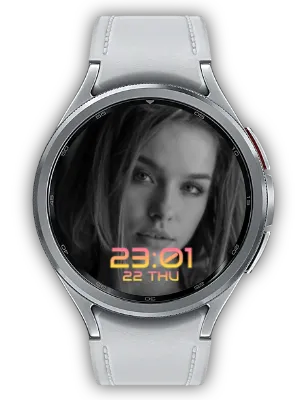


Set up your watch face
To see counter values and tap to count, install Multi Counter on your watch.
Get Multi Counter for your watch on Google Play
- Install Multi Counter and Counter Dashboard on your watch, then apply Counter Dashboard from the watch face picker.
- Open Multi Counter and set up the counters you want to use. If you want a progress bar, set a goal greater than zero and use Multi Counter 16.0.0 or later.
- Touch and hold the watch face, open Customize, then select a slot. Choose Counter for a number or Counter goal for the number and its goal progress.
- Assign a counter to each slot you want to use and choose None for any unused slots. Return to the watch face and tap a configured slot to count.
You’ll need a watch with Wear OS 5 (Android 14) or later that supports Watch Face Format (WFF) version 2.
Counter Dashboard puts up to four Multi Counter values around the time and date on your Wear OS watch face. Tap the slot you’ve assigned to a counter whenever you finish a set, score a point, or complete a row of stitches.
Key Benefits
- Four positions you can set up individually. Assign a counter to any of the four slots and leave the others empty. A single counter is enough to track one task. Fill more slots when you need several counts side by side.
- One tap adds your chosen amount. A tap adds the step you set in Multi Counter. Use a step of 1 for each completed set or 5 for each pack of five items. Open Multi Counter to subtract, correct, or reset a value.
- See how close you are to a goal. With Multi Counter 16.0.0 or later, choose the Counter goal complication to display a progress bar for a positive goal. With no goal set, the slot displays the value alone.

What Multi Counter adds
Multi Counter creates and stores your counters. Counter Dashboard displays their values and sends each tap to the assigned counter.
- Set up counters for the task. Use one to four counters, give them names or colors in the app, and choose an increment from 1 to 100 for each one. Set goals and save recurring configurations as profiles on your phone.
- Count from the screen that’s handy. Use a Wear OS Tile on your watch or a home-screen widget on your Android phone when those controls suit the task.
- Review a finished session. Open Multi Counter on your phone to review completed sessions and daily or monthly totals after counting.
Explore Multi Counter features
Clock Styles and Always-on Display
The bold, scoreboard-style digits make the time and counter values easy to scan. Set the clock to plain white digits or one of five colored digit styles. Choose Mint, Blue, Lime, Amber, Coral, or Lavender separately for the slot labels and goal bars.
The date follows your watch language, and the clock follows your 12- or 24-hour setting. Always-on Display (AOD) keeps the time and counter values visible in white on black.

Ways to use it
- Workout sets. Set a goal of five sets and tap after each one. Put another exercise in a neighboring slot to see your progress on both.
- Game scores. Give each team a slot, then tap the scoring team’s side when a point is awarded. Use the other slots for more players or a separate round count.
- Knitting rows. Tap at the end of each row. Keep a second slot for pattern repeats so you can pick up where you left off after a break.
- Inventory or attendance. Assign different items or entry groups to separate slots. Use a step of 5 when you regularly count packs of five.
Updates
- Added four tappable Multi Counter slots, goal progress bars, and separate controls for accent colors and clock digits.


